Web Basics 3 min read
How the Internet Works in 3 Minutes: One Page Load, Slowed Down 1,000 Times
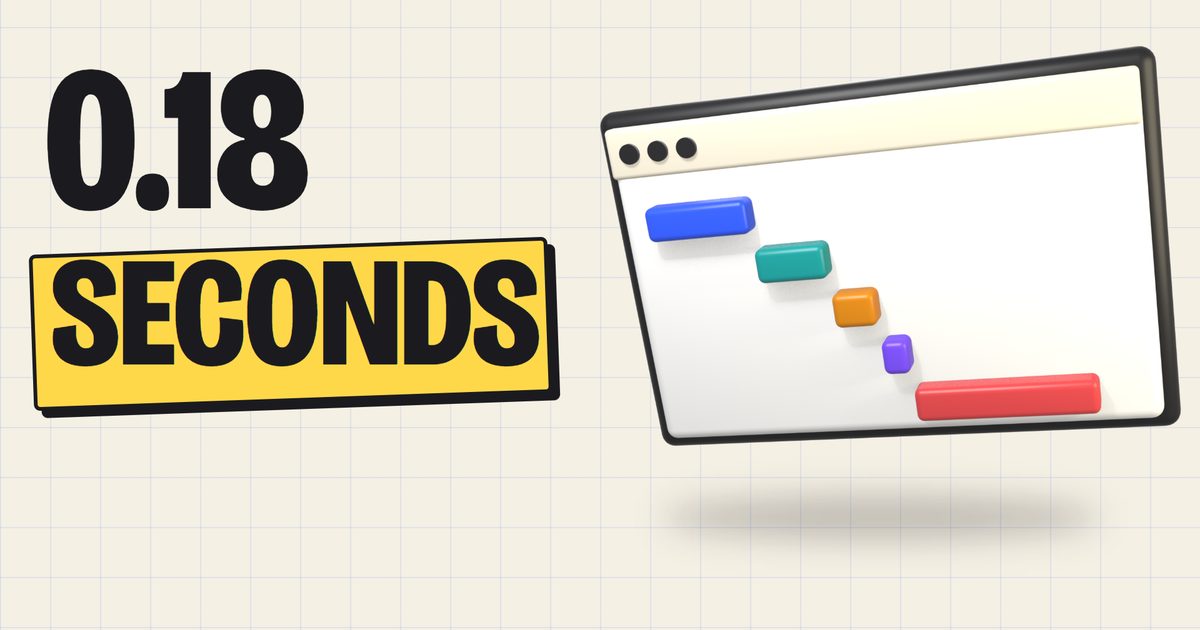
What happens in the 180 milliseconds after you press Enter: URL, DNS, the TCP handshake, HTTPS, the request, and rendering. Plus how to tell which step broke from an error message.

Timothy Benjamin Software engineer
Chapters
- 0:00You pressed Enter 180 ms ago
- 0:22Step 1: the address
- 0:37Step 2: DNS, the phonebook
- 1:04Step 3: handshake and padlock
- 1:31Step 4: ask and answer (200, 404, 500)
- 1:55Step 5: building the page
- 2:16Step 6: why the second visit is faster
- 2:29Which step broke? Reading errors
- 3:00The one thing to remember
Contents
When you press Enter on a web address, your browser goes through six steps in about 180 milliseconds. When a website won’t load, one of those steps failed. By the end of this post you’ll be able to tell which one, just from the error message.
The timings below are real. I measured one page load of example.com in a Chromium browser: DNS 37.5 ms, connect and lock 24.5 ms, first byte 14.6 ms, download 8.9 ms, build 61.2 ms, about 180 ms in total. The video plays them back a thousand times slower.
Step 1: The address
Take https://example.com. The first part, https, says how to talk: securely. The middle, example.com, says who to talk to. But your computer can’t use a name. It needs a number.
Step 2: DNS, the internet’s phonebook
Your browser asks a DNS server, which works like a phonebook that turns names into numbers. If that server doesn’t know the answer, it asks around: first a server for all the .com names, then the server for example.com itself.
The answer comes back as an IP address, for example 104.20.23.154. That took about 37 milliseconds. Your browser saves the answer, so next time it can skip this step.
Step 3: The handshake and the padlock
Your browser connects to that number. The usual way is the TCP handshake, three short messages:
- “Hello, are you there?”
- “Yes, I’m here.”
- “Great, let’s go.”
Then, because it’s HTTPS, they lock the line. The server shows a certificate, its proof of identity, and both sides agree on secret keys. Anyone in the middle now sees noise instead of your data. That is the padlock in your address bar.
Step 4: Ask and answer
Only now does your browser ask for the page: “Get me the home page, please.” The server answers with a number first, the status code:
| Code | Meaning |
|---|---|
| 200 | Here you go |
| 404 | That page isn’t here |
| 500 | Something broke on my side |
For example.com it’s a 200, and the answer is in about 85 milliseconds after you pressed Enter.
Step 5: Building the page
What comes back first is HTML, plain text that describes the page. Your browser reads it top to bottom and finds more things it needs: styles, scripts, images. Each one is another request. Then it works out where everything goes and paints it. That’s the 180 milliseconds, back to normal speed.
Step 6: Why the second visit is faster
Open the same site again and it’s usually quicker. The phonebook answer was saved, and files you already downloaded were kept. Less asking, less waiting. That is most of what makes the web feel fast.
Which step broke? Read the error
This is the part that makes the whole thing useful. When a page won’t load, match the message to the step:
| What you see | Step that failed | What it means |
|---|---|---|
| ”This site can’t be reached” (DNS error) | Step 2 | The name never became a number |
| ”Connection timed out” | Step 3 | Your browser couldn’t reach the server |
| ”Your connection isn’t private” | Step 3 | The lock (certificate) failed |
| A 404 or a 500 | Step 4 | You reached the server, and it said no |
| Page loads but looks broken | Step 5 | Something it needed didn’t arrive |
So next time, don’t just hit refresh. Read the message. It tells you where the trip stopped.
Want to see it yourself?
You can watch these steps happen in your own browser. Open DevTools (F12), go to the Network tab, reload the page, and click the first request. The timing breakdown shows the DNS lookup, connection, waiting for the first byte, and download.
If you’re learning to code, this is the foundation under everything else. My step-by-step plan for it is in How to Learn JavaScript in 2027.
Which error have you seen the most? Tell me in the comments on the video.
The voice in the video is a synthetic clone of my own voice, and the music is AI-generated. More about me and my work is at timothybenjamin.com.
Filed under
- #How the Internet Works
- #DNS
- #HTTPS
- #Networking
- #Web Development
Share